
Trips – Shows you the trips your drivers have made and their driving behavior during the trip
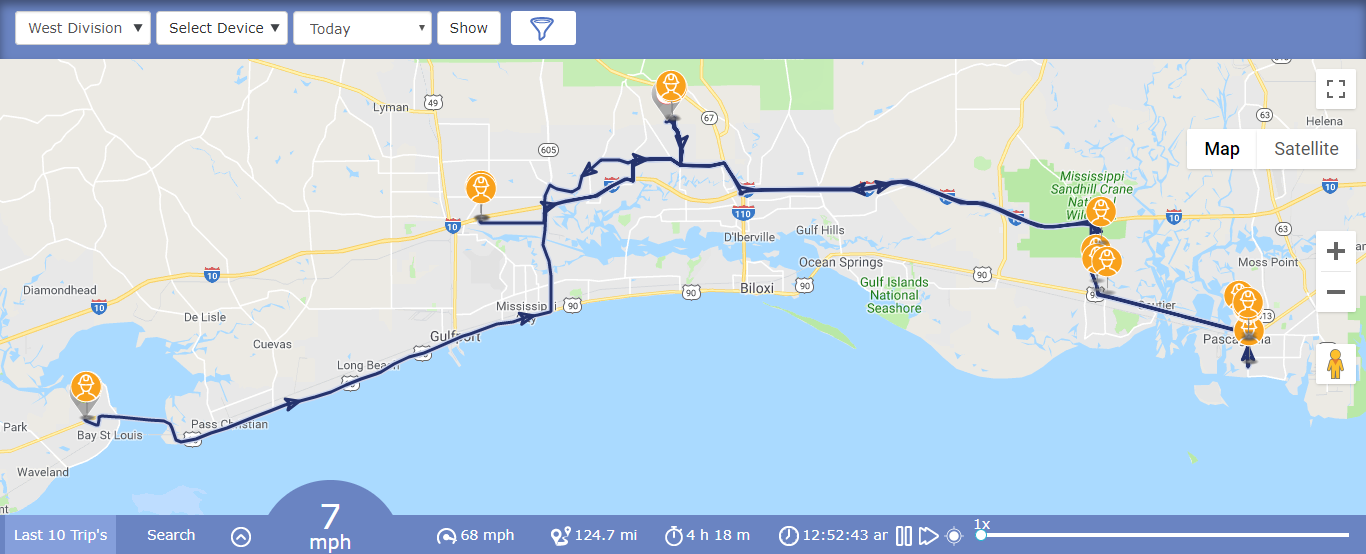
- On the first filter (division filter) you can choose devices to see by the division they’ve been assigned to.
- Should you want to see one or more devices in specific on the map, then you can do that by hovering your mouse over the Device filter and ticking the needed ones from the drop-down.
- If you want to filter the made trips by the time they were made, you can do that by clicking on the 3rd filter.
- The Show button will show all of your devices on the map from all of your divisions.
- If you want to see/filter devices by the drivers’ behavior, simply just click on the blue funnel and tick one or more from the available option.
- Down in the bottom left corner you can see the last 10 trips that have been made and a set of information like Device, Date (on which the trip was made), Start Time, End Time, Start Address, End Address, Duration (of the trip), Distance, and Drive Score.
* You can also click on any of the last 10 trips and see the trip itself on the map including their driving behavior. Additional info shown for the selected trip is the maximum speed the driver reached.
* Should you wish to watch the trip from the start point to its end, then simply click the play button on the bottom right-hand side after the local time.
Last Update: March 20, 2020
March 17, 2020 151 jusuf User Guide
Total 0 Votes:
0
0
Tell us how can we improve this post?
Log In is required for submitting new question.