
Reports – Reports give you specific data about your organization that is related to the drivers and the devices. Reports will show results based on the filters that are set on the top left-hand side (division, device(s) and time period).
Below you can find the list of reports that are available:
- Device Totals
- Geo Zone Report
- Hours of Service Report
- State Mileage Report
- Management Report
- Event Detail
- Safety Scorecard
- Drive Score
- Device Total
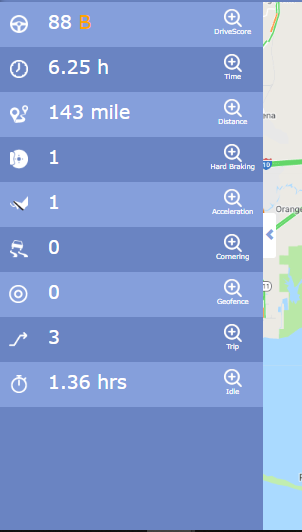
This report shows you details such as Drive Score, Time, Distance, Hard Braking, Acceleration, Cornering, Geo-fence, Tip, and Idle.
- Geo Zone Report
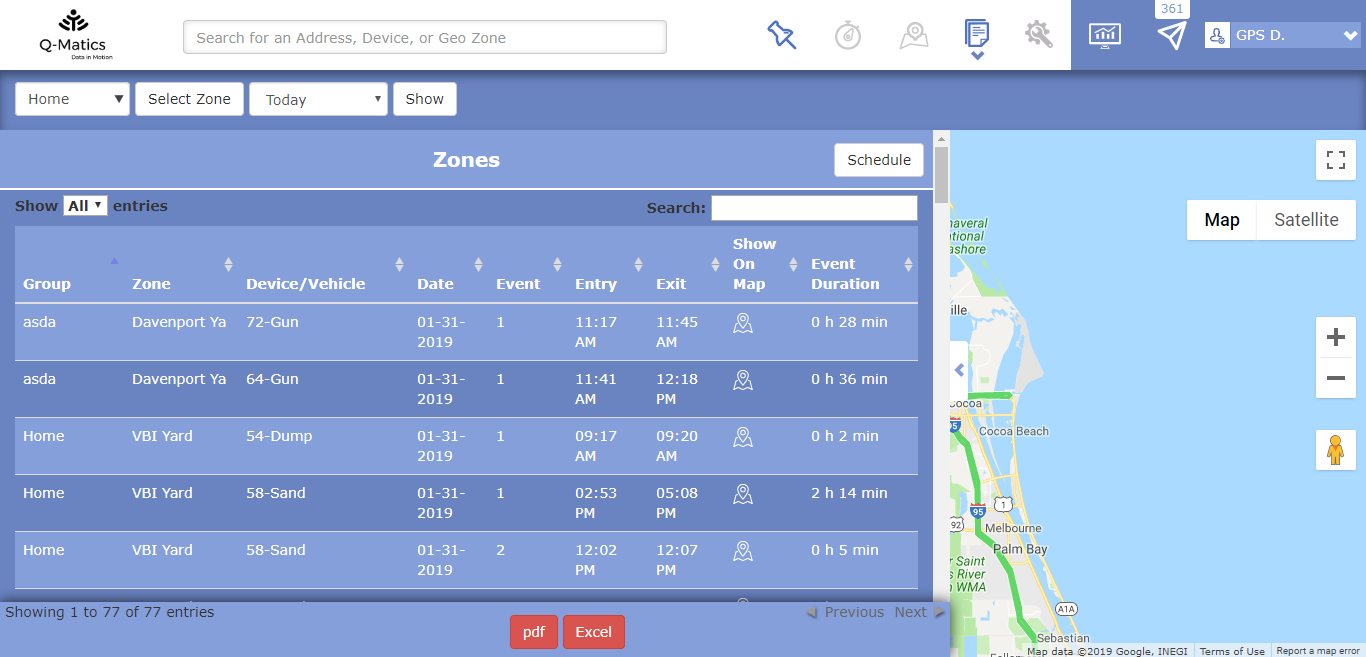
The Geo Zone Report is specifically made to inform you when a driver has entered and exited a geo zone. Additionally, you will have information like the group of the geo zone, the geo zone itself, which device it is, the date, the event, entry point, exit point, availability to see it on the map and the event duration.
You can also schedule this report to receive it automatically in your email.
- Hours of Service Report
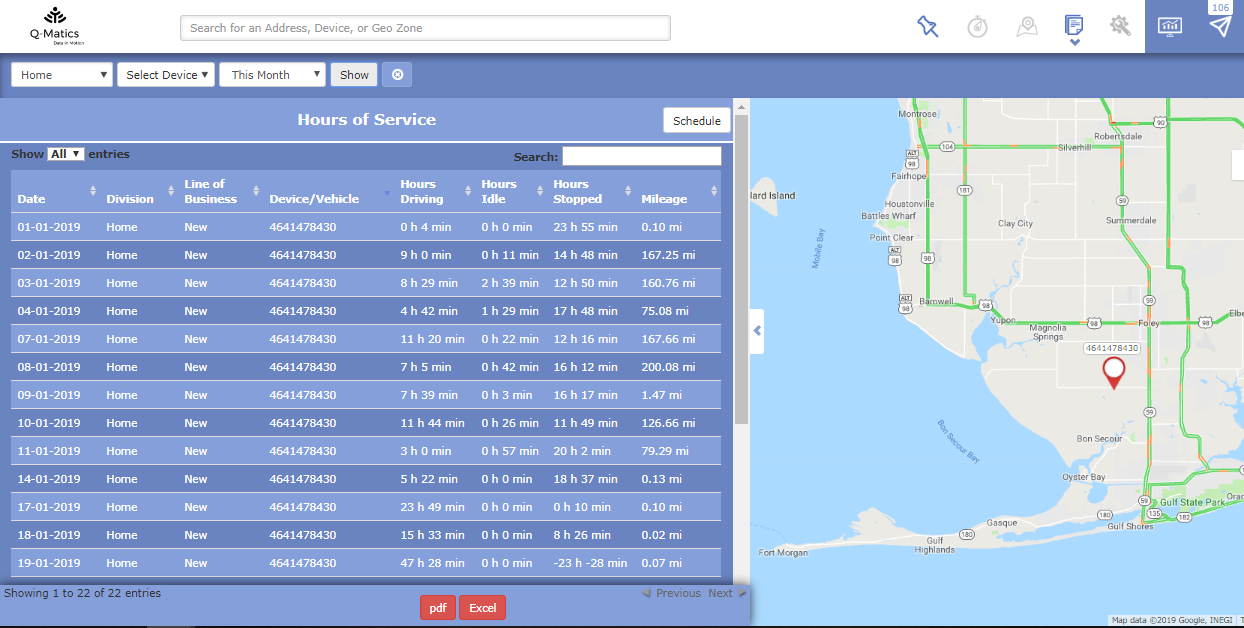
This report gives you information related to the working hours of the drive. Additionally, you will have information like date, the division on which that device/driver is assigned to, the line of business, the device, hours driving, hours idling, hours stopped and the covered mileage.
You can also schedule this report to receive it automatically in your email.
- State Mileage Report
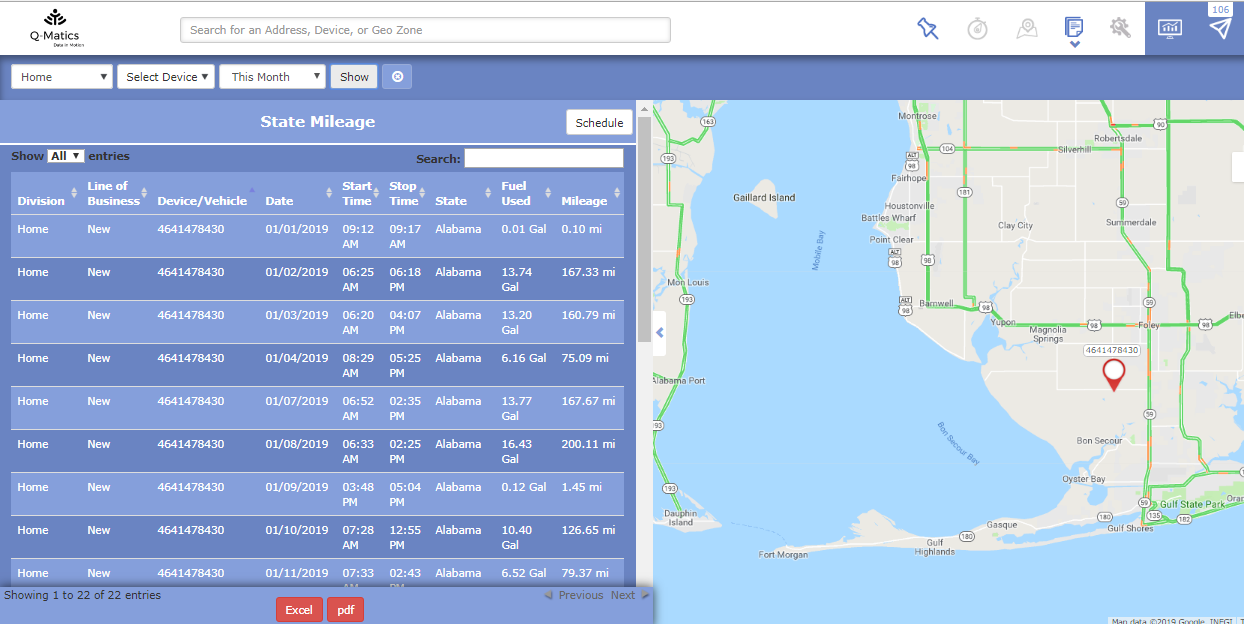
In this report, you can find the mileage that is covered by your drivers specific to the state on which they were driving. Additionally, you will have information like the division of the driver, the line of business, the device, date, start time and end time of the trip, the state, amount of flue used for the trip and the covered mileage.
You can also schedule this report to receive it automatically in your email.
- Management Report
The Management report helps you to track and check statistics about your drivers while they were on trips. Additionally, you will have information like which device it is, the covered mileage, the total amount of trip hours, idle time, idle time in percentage %, longest idle time, number of trips, speeding less than 5 mph, speeding between 6-10 mph, speeding between 11-20 mph and speeding over 20 mph.
You can also schedule this report to receive it automatically in your email.
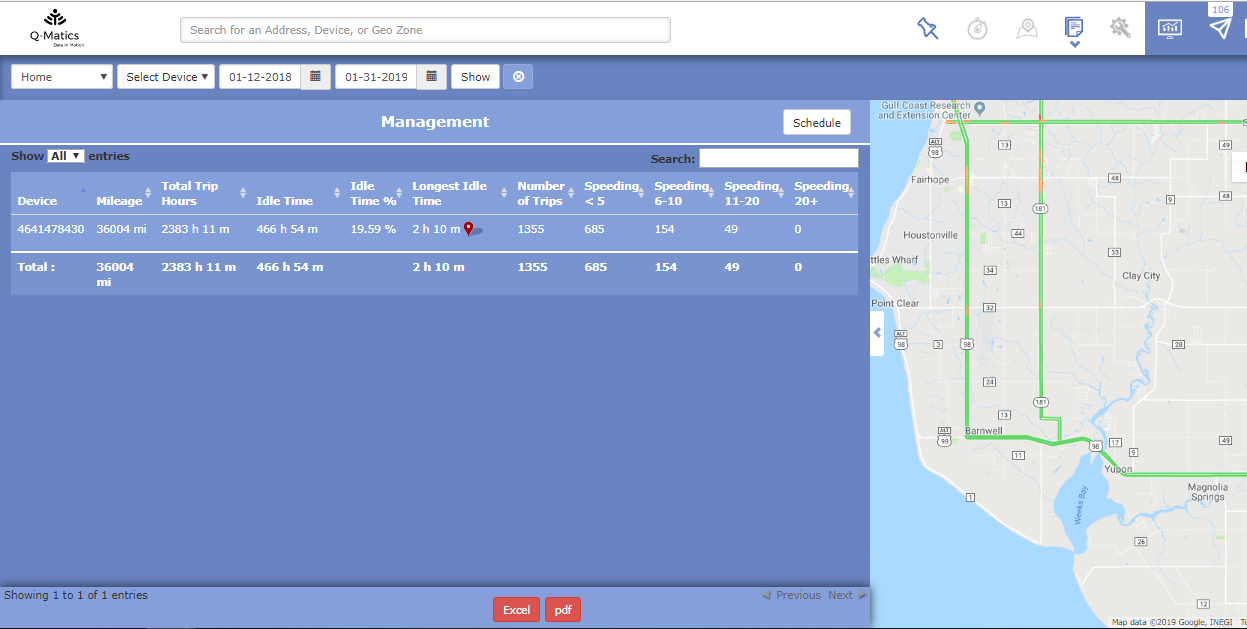
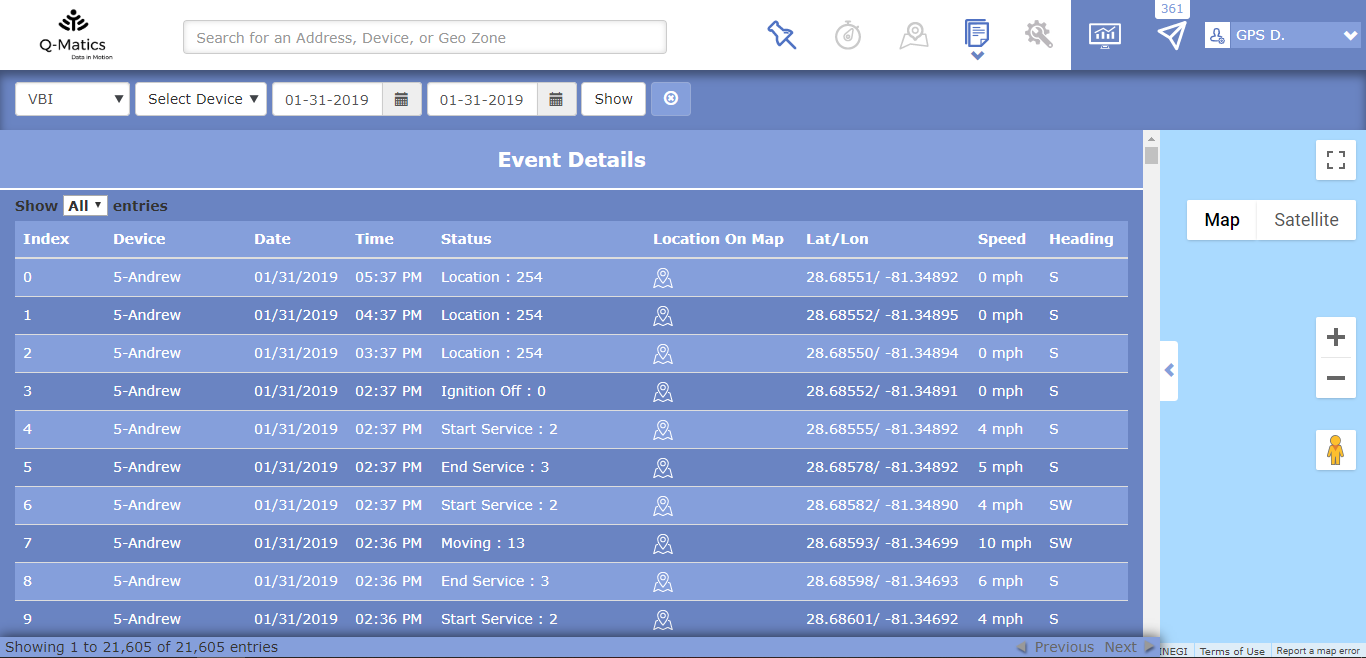
- Event Details Report
In this report, you can see details that are related to each trip covered by your drivers. Additionally, you will have information like index, device, the date, the time of the event, the status, availability to locate it on the map, lat/lon, the speed of the driver and heading.
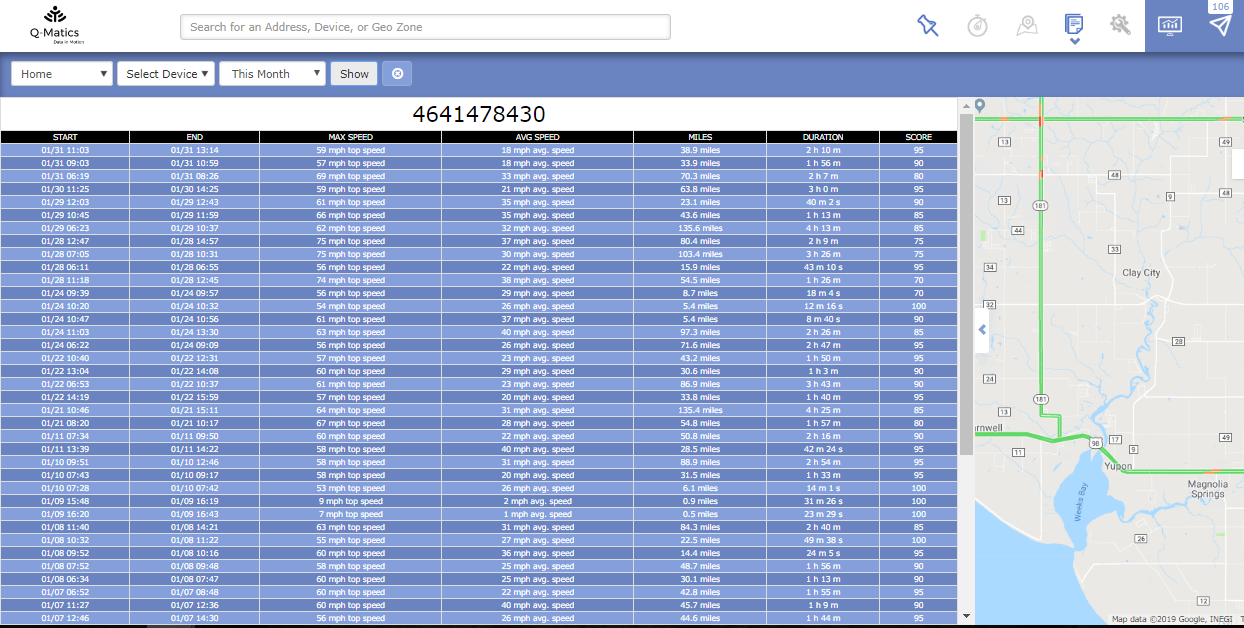
- Safety Scorecard Report
The Safety Scorecard report helps you to see how your drivers have driven/performed during trips based on their driving behavior. Additionally, you will have information like the start and end time of their shift, maximum speed, average speed, covered miles, the duration, and their score.
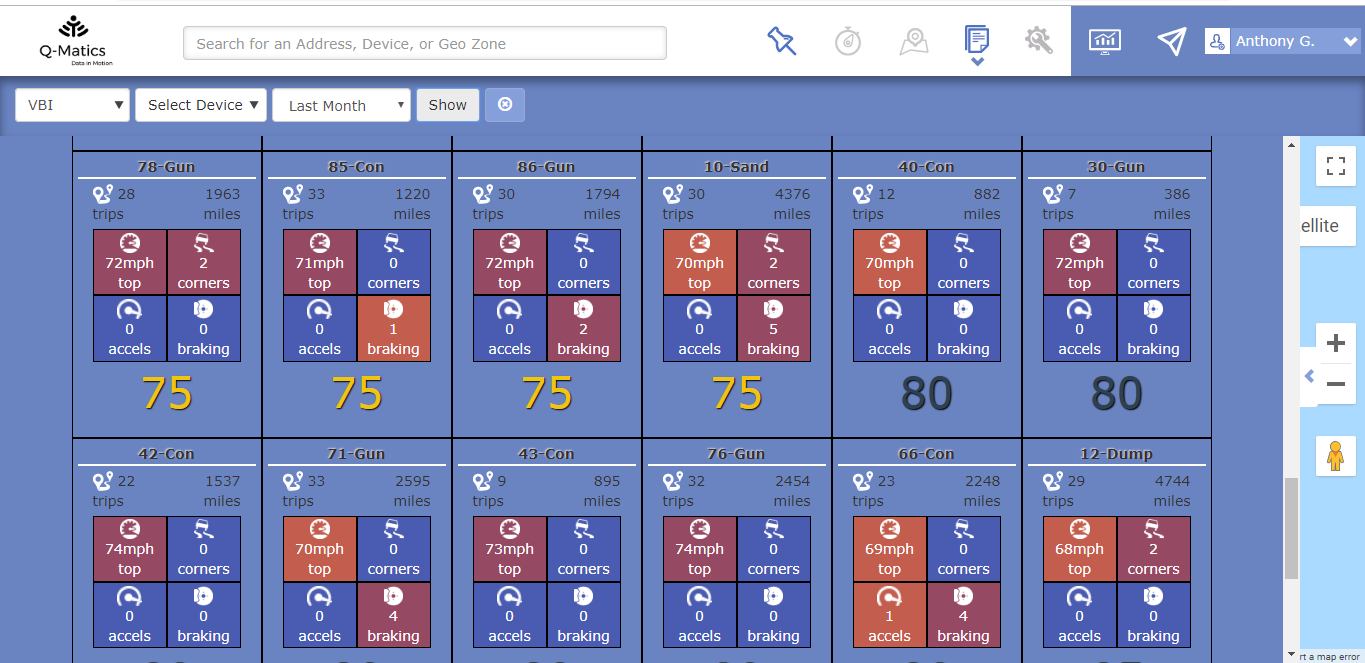
- Drive Score Report
Should you want to see how well your drivers are performing, the drive score report gives you details on that. Basically, the drive score report gives you details of how you’re drivers have performed and the score they have. Additionally, you will have information for each driver like their top speed, how many bad cornerings have been done, accelerations and hard breakings.
Last Update: March 20, 2020
Tell us how can we improve this post?
Log In is required for submitting new question.