Each organization has three sets of Users and each of them has a different role:
- Organization Admin
- Division Admin
- Division User
Below you’ll find how these users are set up and what their role is.
- Organization Admin
The Organization Admin has 3 tasks:
- Create division(s) (region(s)/sector(s))
- Assign the given devices from the reseller to each division
- Create division admin(s).
1 Creating Division(s) (region(s)/sector(s)):
1.1 Click on the organization name (located on the top right corner) and select Users & Devices


1.2 Select Manage Divisions
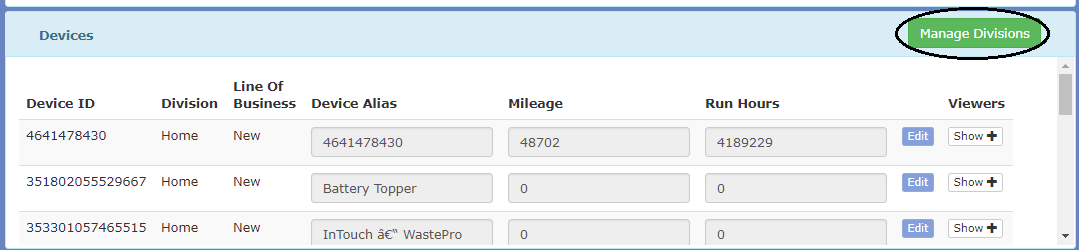
1.3 Enter the name of the division in the ‘New Division’ box and then click “+ Add”
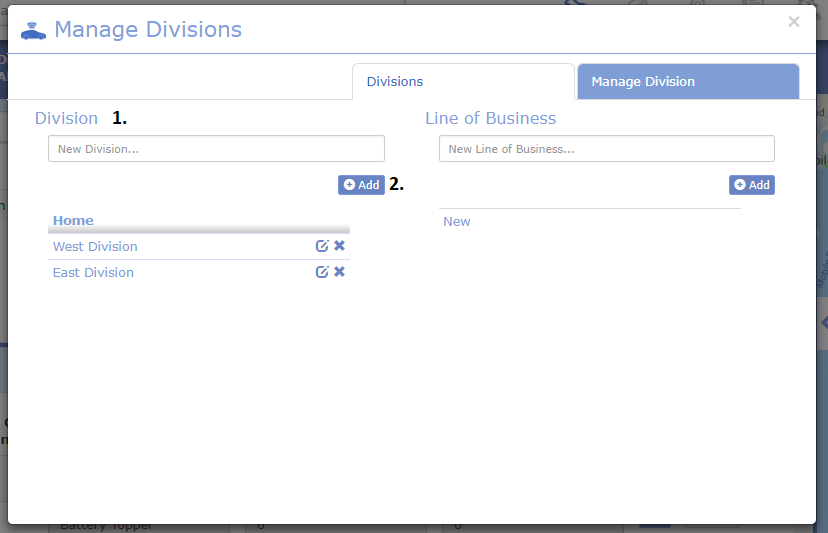
The entered division will appear below in the Home section.
2. Assigning Devices to Divisions
2.1 Click on the organization name (located on the top right corner) and select Users & Devices

2.2 Select Manage Divisions
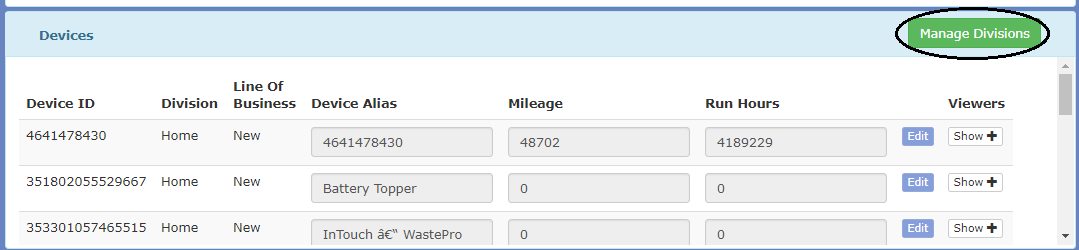
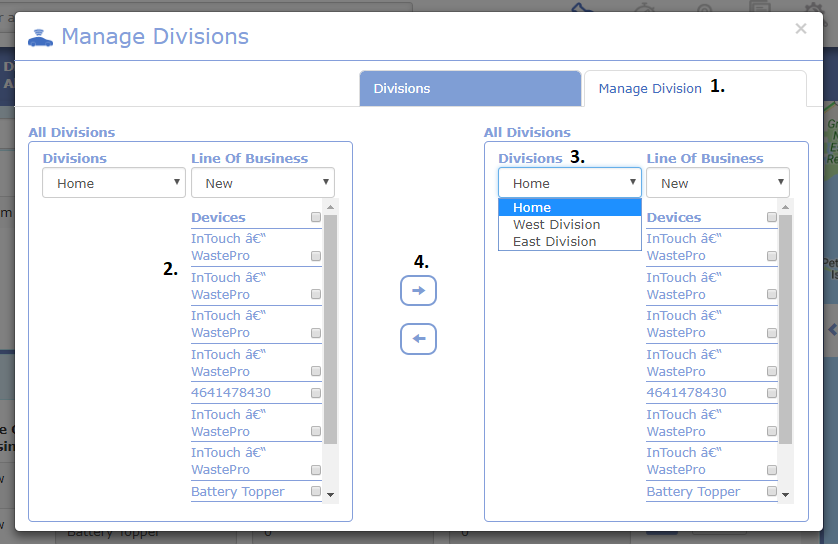
2.3 By default, the system assigns all the devices to the division Home and line of business New.
2.3.1 Select Manage Divisions
2.3.2 Next tick the devices from the Line of Business column in the left-hand side
2.3.3 On the Divisions drop-down in the right-hand select the division to which you wish to assign the ticked devices.
2.3.4 Lastly, click on the right-facing arrow (located on the middle) for the devices to be assigned to the selected division.
3. Creating Division Admin(s)
3.1 Click on the organization name (located on the top right corner) and select Users & Devices

3.2 Select Create User
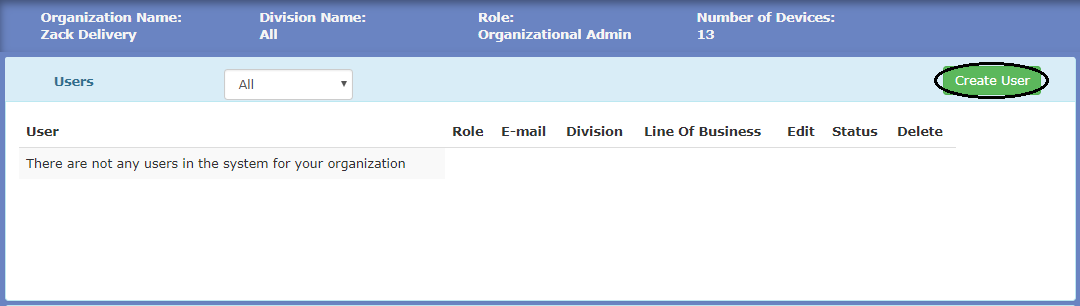
3.3 Enter the first name, last name, email, password and select the division to where you want that admin to have access too.
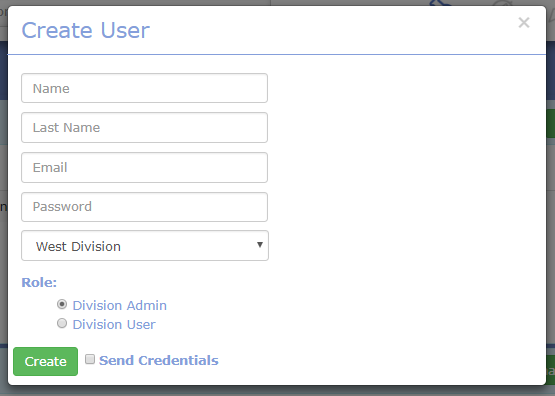
- Division Admin
The division admin has 3 tasks:
- Create lines of business
- Assign devices to the lines of business
- Create user division.
1 Creating Lines of Business:
1.1 Click on the organization name (located on the top right corner) and select Users & Devices
1.2 Select Manage Divisions
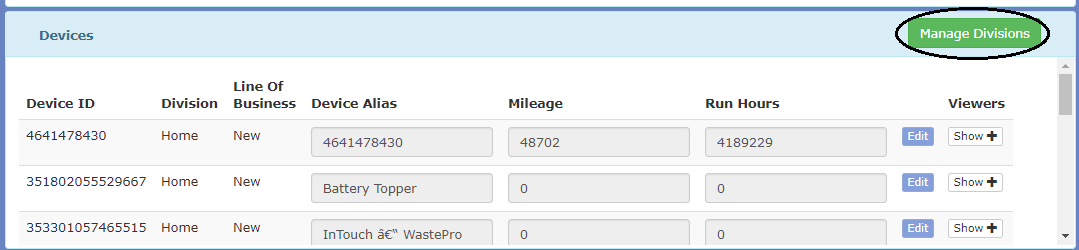
1.3 Enter the name of the line of business in the ‘New Line of business’ box and then click “+Add”
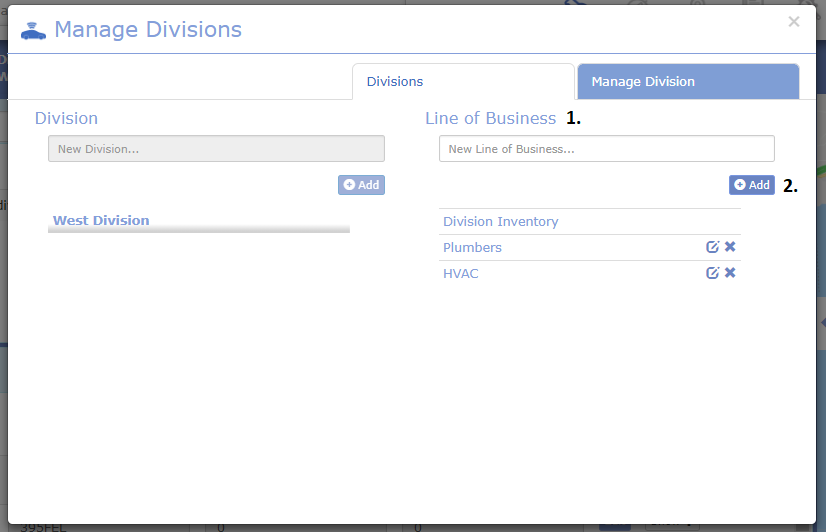
The entered line of business will appear below in the New section.
2. Assigning Devices to Lines of Businesses
2.1 Click on the organization name (located on the top right corner) and select Users & Devices
2.2 Select Manage Divisions
2.3 By default, the system assigns all to the line of business Division Inventory.
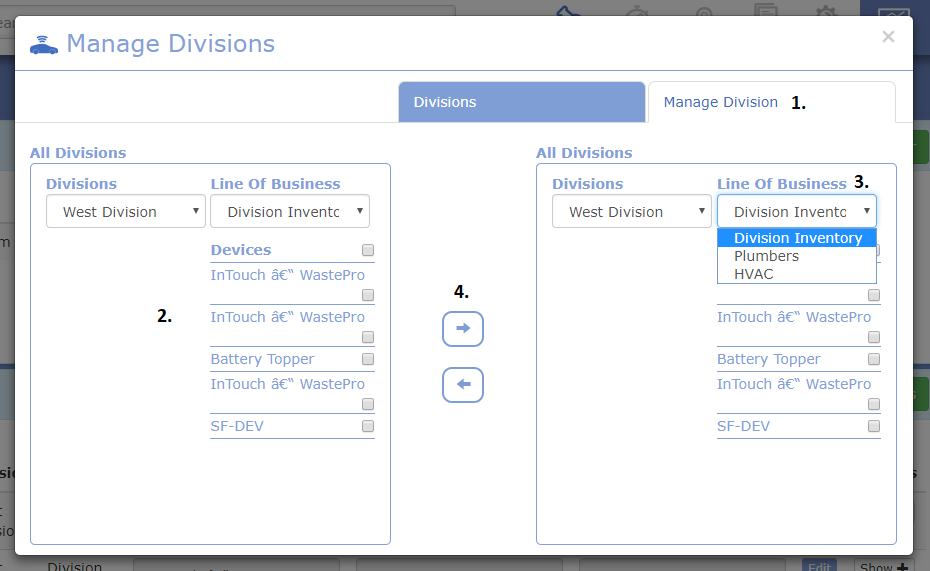
2.3.1 Select Manage Divisions
2.3.2 Next tick the devices from the Line of Business column in the left-hand side
2.3.3 On the Line of Business drop-down in the right-hand select the line of business to which you wish to assign the ticked devices.
2.3.4 Lastly, click on the right-facing arrow (located on the middle) for the devices to be assigned to the selected division.
3. Creating Division User(s)
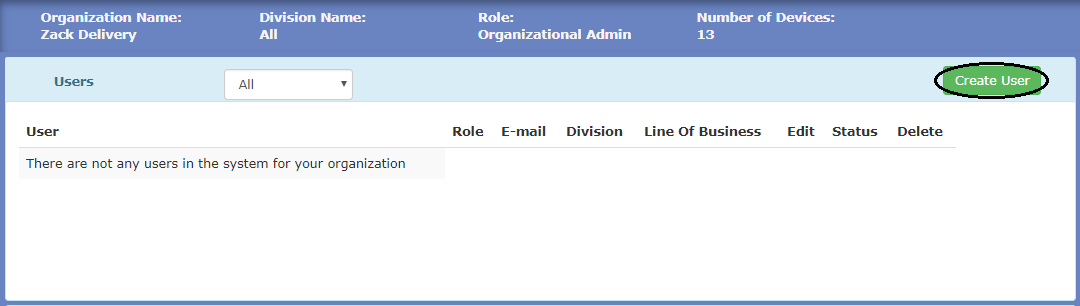
3.1 Click on the organization name (located on the top right corner) and select Users & Devices
3.2 Select Create User
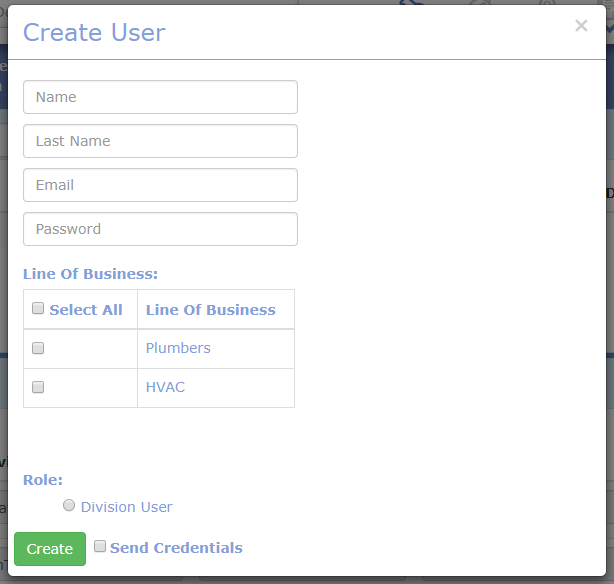
3.3 Enter the first name, last name, email, password and select the lines of business where you want that user to have access too.
Last Update: March 20, 2020
Tell us how can we improve this post?
Log In is required for submitting new question.