On the Inventory tab, you will be able to assign the given devices to your customers and all of the devices that you have assigned to your customers.
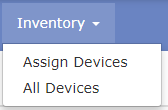
- By choosing Assign Devices, you’ll be directed to assign the given devices to your customers:
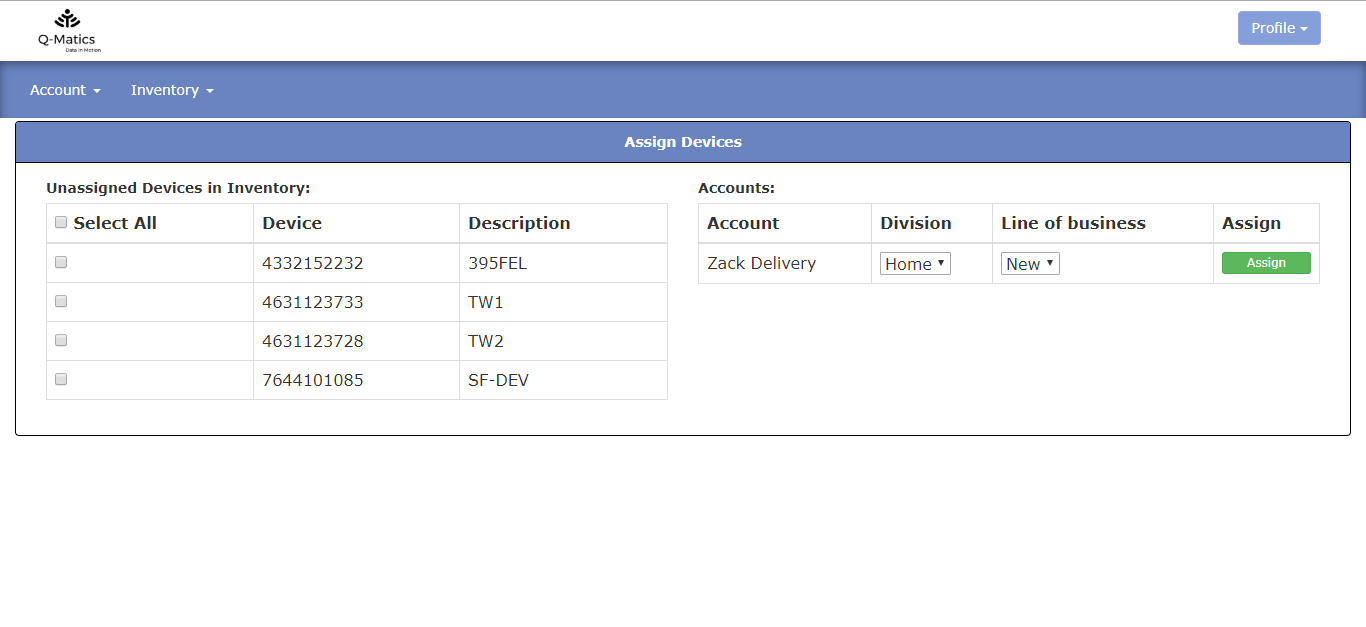 On the left-hand side of the screen, you will see the available devices that you can assign and on the right-hand side you’ll have a list of your client(s) which you can assign the device(s) too.
To assign a device, tick one (or more) available devices on the left-hand side and then click on the green “Assign” button for the client that you want to assign the device(s) too.
- Once you’ve assigned devices to your clients you track and see them by clicking on All Devices.
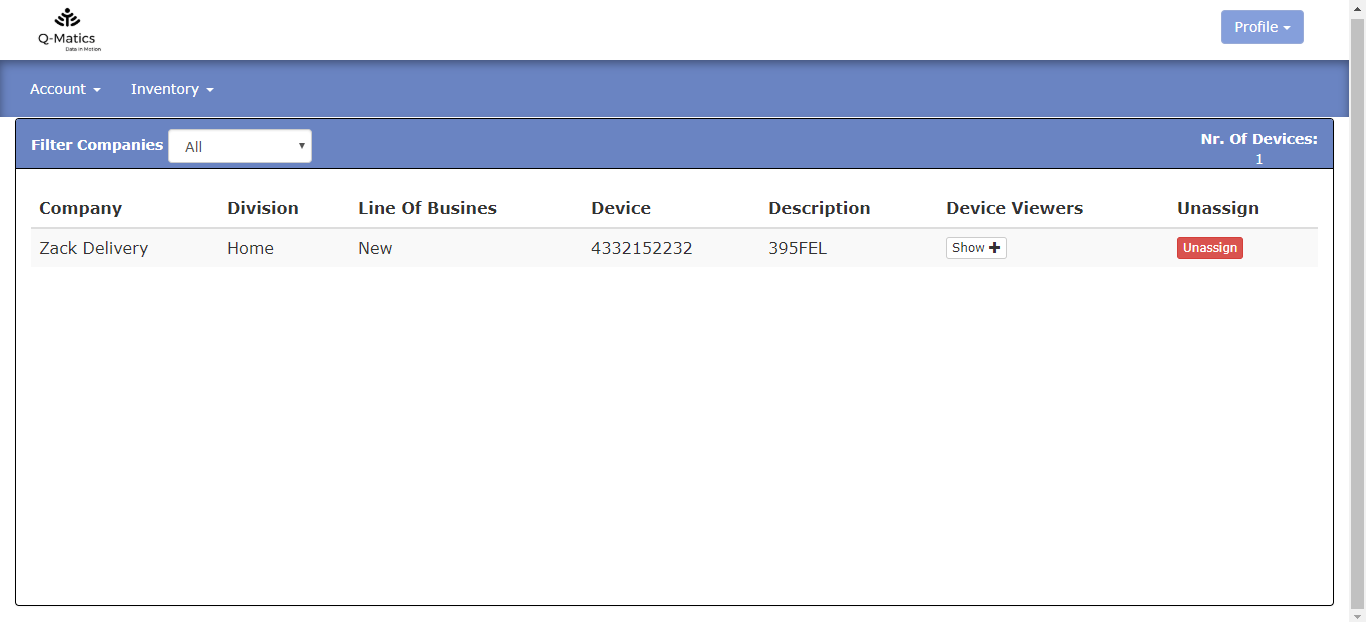
Here you will see information as:
- Company
- Division
- Line of Business
- Device
- Description
- Device Viewers
On this window, you also have to option to unassign a device from your customers.
Last Update: March 20, 2020
March 20, 2020 22 jusuf Reseller Guide
Total 0 Votes:
0
0
Tell us how can we improve this post?
Log In is required for submitting new question.