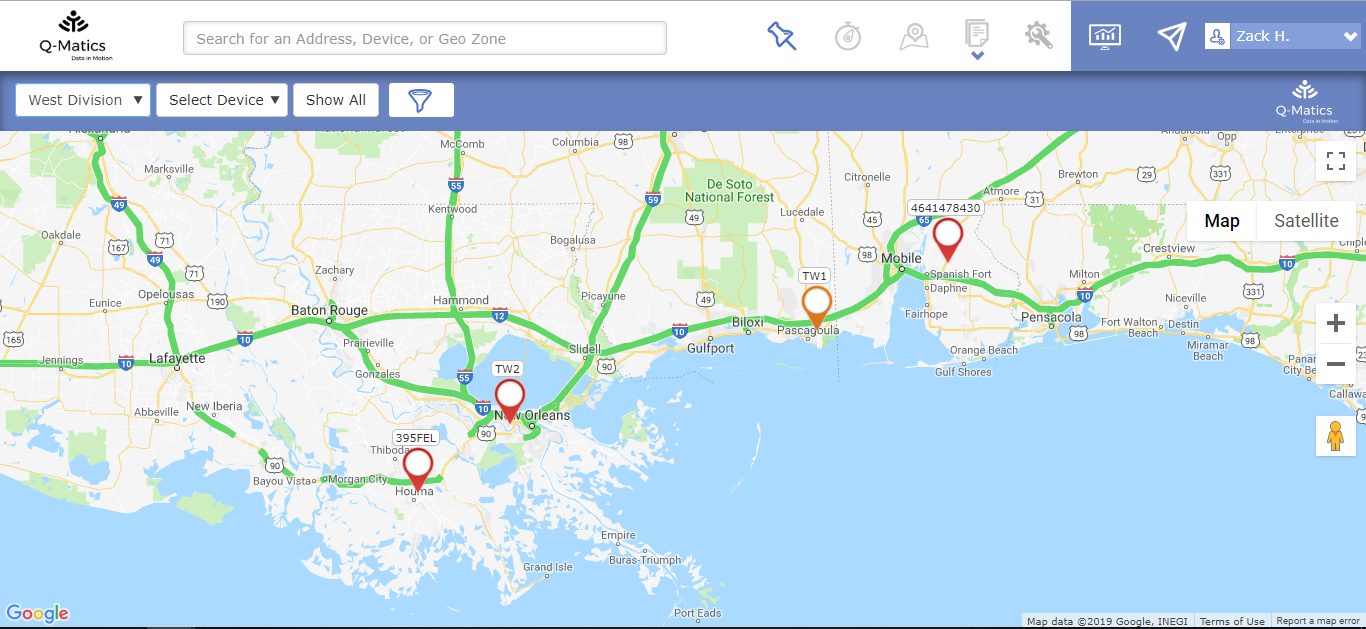
When initially logged into your account, you will be presented with the map which shows your active drivers/devices alongside other features and functionalities.
- Address Search Bar
Up at the top, you have your search bar which enables you to search for an Address, Device or Geo Zone. What makes the search bar unique is that you can enter the name/number of a device and it will automatically take to the location of that device.

- Map Filters
Right below your address search bar, you have your map filters which enable you to filter which devices/drivers you want to see on the map.

- On the first filter (division filter) you can choose devices to see by the division they’ve been assigned to.
- Should you want to see one or more devices in specific on the map, then you can do that by hovering your mouse over the Device filter and ticking the needed ones from the drop-down.
- The Show All button will show all of your devices on the map from all of your divisions.
- If you want to see/filter devices by the drivers’ behavior, simply just click on the blue funnel and tick one or more from the available option.
- Organization/Company data & analytics
On the top right-hand side, you have the tools which show you data & analytics for your organization.

Last Update: March 20, 2020
March 17, 2020 153 jusuf User Guide
Total 0 Votes:
0
0
Tell us how can we improve this post?
Log In is required for submitting new question.